
Install Windows Steam, set up your first game, and troubleshoot common problems without installing Windows.
CrossOver can run supported Windows games directly on macOS, opening up options beyond games with a Mac release. You do not need to reboot into Windows or set up a Windows virtual machine. You do need to check compatibility: CrossOver cannot run every Windows game, and installing successfully does not guarantee smooth gameplay.
This guide uses Windows Steam as the main example and follows the CrossOver 26 interface. Menu names and available settings may differ in other versions.
What you need before starting
- A Mac and macOS version supported by the CrossOver release you plan to install. Check CodeWeavers’ current system requirements.
- CrossOver for Mac, available from CodeWeavers. A fully functional 14-day trial is available. [1]
- A Steam account and access to the Windows game you want to play.
- Enough free storage for CrossOver, the launcher, the game, and temporary installation or update files.
- An internet connection for downloads and any required account verification.
CrossOver’s requirements tell you whether the application can run. They do not tell you whether a particular game will perform well. Look for game reports from Macs with a similar chip, GPU configuration, and memory capacity.
1. Check the game before downloading it
Search the CrossOver compatibility database for the exact title. Read the Mac reports, including the tested CrossOver version and any installation notes. Ratings include both staff and community reports. A high rating is useful evidence, but it is not an FPS measurement for your Mac. [2]
Pay particular attention to:
- Whether the report covers the same store edition you own.
- Whether testing reached actual gameplay rather than just the launcher.
- Whether online multiplayer, cutscenes, and saving work.
- Whether the report predates a major game or launcher update.
Check anti-cheat compatibility early. Some multiplayer games require Windows anti-cheat components that do not work through CrossOver. CodeWeavers explains that these low-level dependencies can prevent games from running. Changing graphics settings will not resolve that kind of incompatibility. [3]
For your first installation, choose a game with recent successful Mac reports and straightforward setup instructions.
2. Install CrossOver on your Mac
- Download CrossOver for Mac from CodeWeavers.
- Open the downloaded ZIP file if your browser has not already extracted it.
- Launch CrossOver and choose Move to Applications Folder when prompted.
- Start the trial with Try Now, or unlock it using your purchase information. [1]
On Apple silicon, follow any legitimate Rosetta installation prompt required by your CrossOver build. The CPU translation path depends on the release; this guide does not require switching to a Preview build or manually configuring a CPU translator.
3. Install Windows Steam inside CrossOver
The Mac version of Steam and the Windows version running through CrossOver are separate installations. For this workflow, you need Windows Steam inside CrossOver.
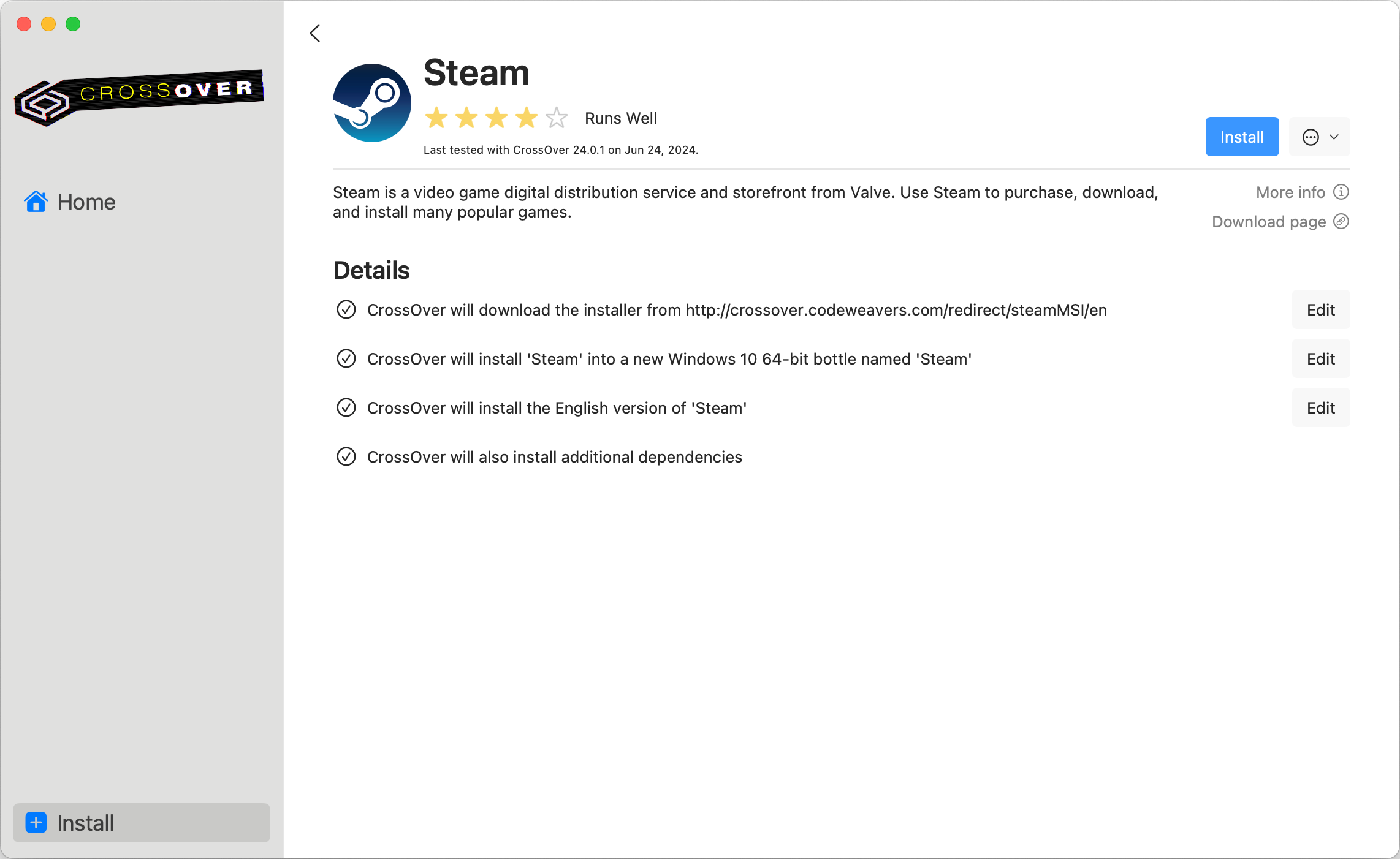
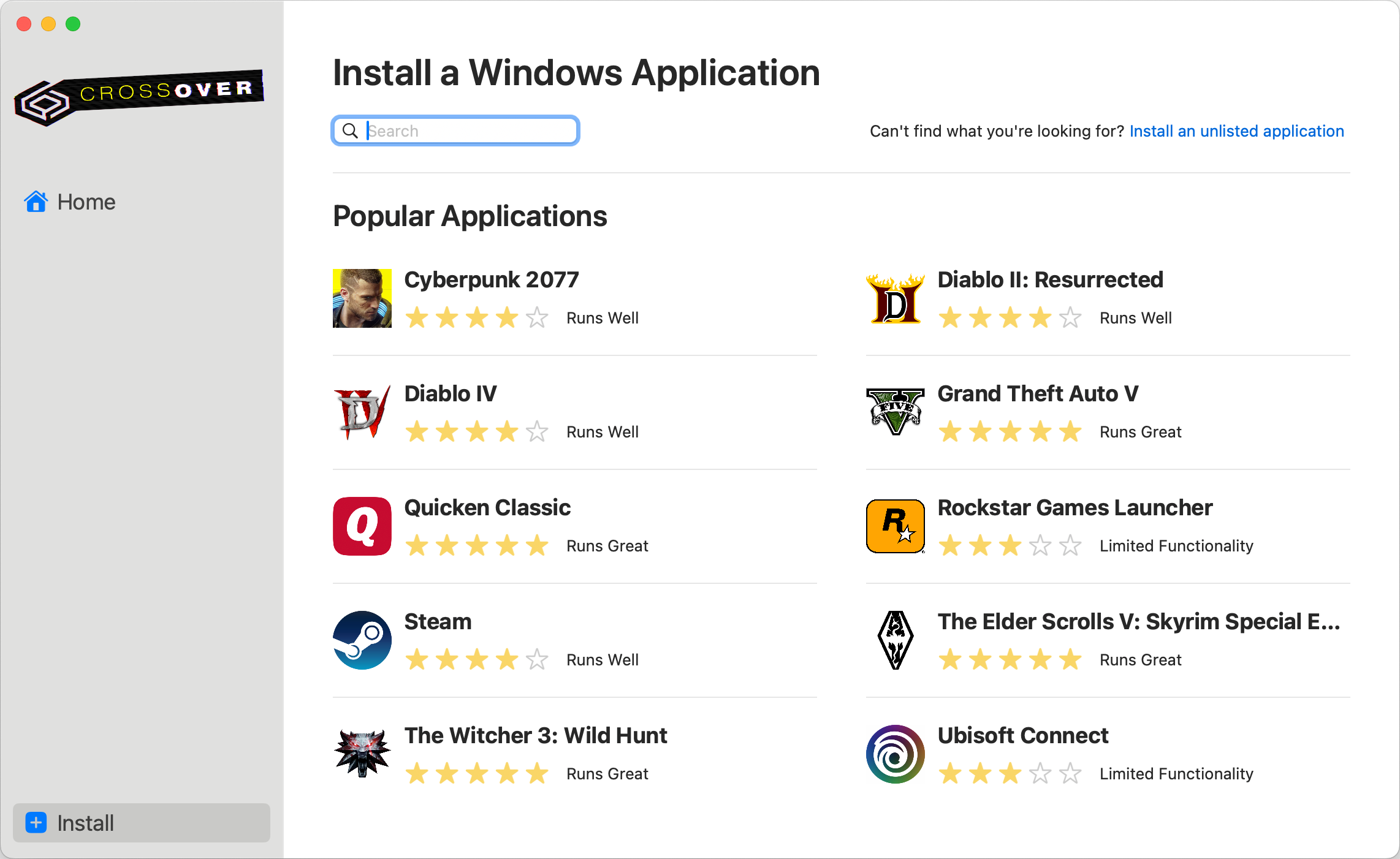
- In CrossOver, select the Steam installation entry. If it is not immediately visible, search for Steam in the installation interface.
- Click Install and keep the recommended configuration unless the game’s instructions specify otherwise.
- Let CrossOver download the installer and required dependencies.
- Complete the Windows Steam installer, then allow Steam to update itself.
- Sign in and complete Steam Guard verification if requested. [4]

CrossOver installs Windows applications into environments called bottles. A bottle holds its own Windows-style files, registry, software, and settings. It is not a complete Windows operating system. [5]
Use the installation recipe’s default bottle type. There is usually no reason to create a legacy 32-bit bottle simply because a game is old: CodeWeavers says CrossOver 26’s default 64-bit bottles also support 32-bit Windows applications. [5]
4. Download and launch your game
Inside the Windows Steam client:
- Open Library and select your game.
- Choose Install, confirm its destination, and wait for the download to finish.
- Click Play and complete any legitimate first-run setup.
- Reach a playable scene before evaluating performance.
For this first test, keep the Steam library location at its default. Adding external drives or moving existing installations introduces extra variables while you are checking basic compatibility.
If the game asks you to sign into another launcher, test that login too. A working Steam installation does not establish that every launcher or game inside it will work.
For later sessions, open CrossOver, launch Steam from its bottle, and start the game from your library.
5. Choose graphics settings carefully
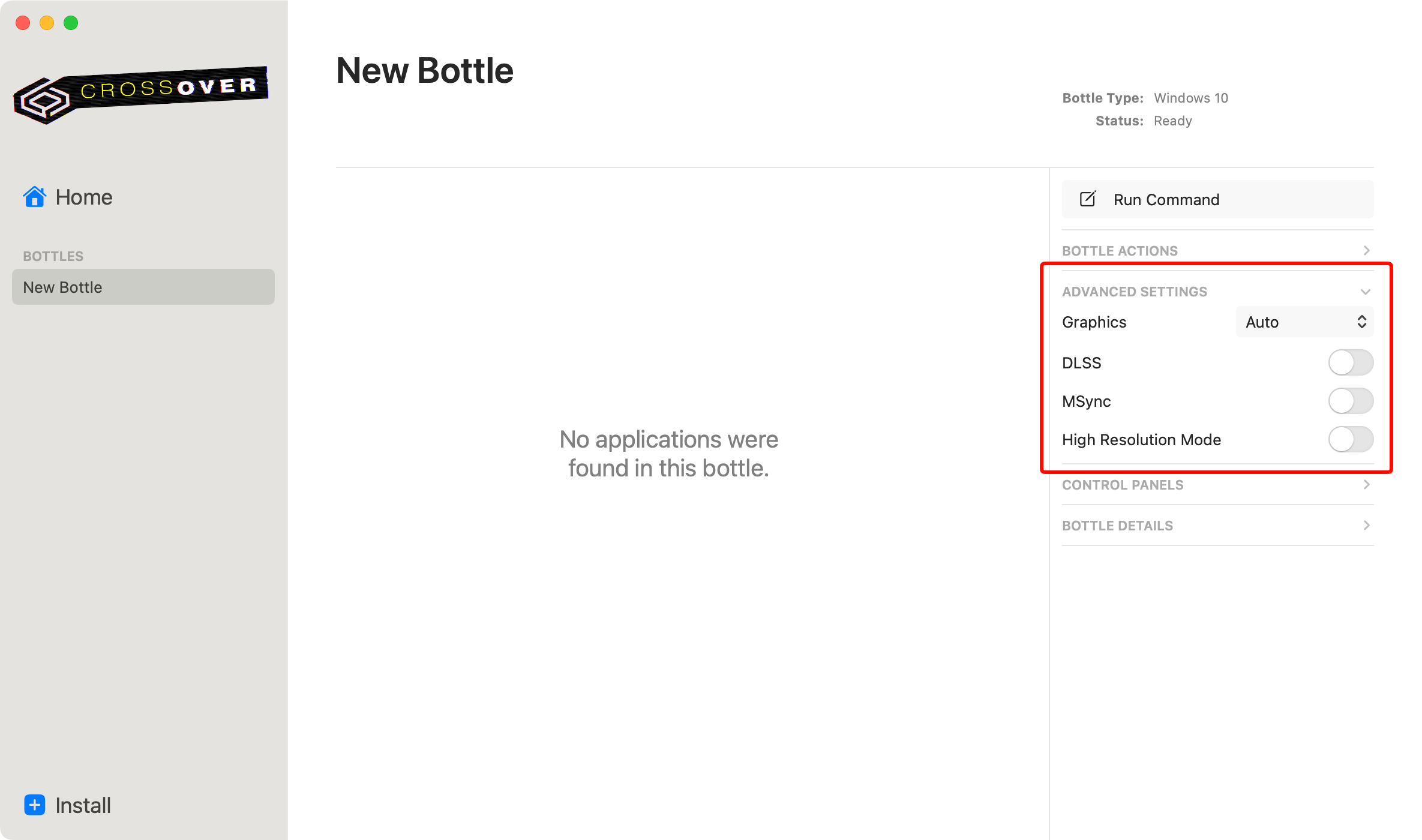
Start with Auto in the bottle’s graphics settings unless a current game-specific guide recommends something else. In CrossOver 26, Auto uses CodeWeavers’ per-game backend selection where available. [6]
| Option | What it is for |
|---|---|
| Auto | Uses a game-specific selection when available, otherwise falls back to Wine’s graphics implementation |
| D3DMetal | Translates DirectX 11 and DirectX 12 graphics using Apple’s game porting technology |
| DXMT | Provides a Metal-based implementation of Direct3D 11 |
| DXVK | Provides Vulkan-based translation for Direct3D 10 and 11 |
| Wine | Uses Wine’s Direct3D implementation, known as wined3d |
The selected backend applies across the bottle. Quit its running applications before switching settings, then relaunch and test. MSync may improve performance in some applications, but it is not a universal fix. High Resolution Mode changes display scaling behavior; it is not an FPS boost. [6]
If two games need conflicting settings, separate bottles can help keep their configurations independent. [5]
6. Find a playable balance
Once the game runs correctly, tune its in-game settings. Use this as a starting procedure, not a promise of a particular frame rate:
- Begin at a modest resolution, such as 1920 × 1080, or lower on less capable hardware.
- Select a low or medium preset and leave ray tracing disabled initially.
- If the game offers a supported upscaler, compare its quality and balanced modes.
- Test the same scene after each adjustment.
- Try a frame-rate cap your Mac can sustain consistently.
Watch for uneven motion, delayed input, missing effects, and crashes as well as average FPS. A visually broken game running quickly is not a successful configuration.
Record your Mac model, macOS version, CrossOver version, graphics backend, resolution, and preset. That makes later troubleshooting much easier and gives other Mac players useful comparison data.
7. Test your controller and saves
Connect or pair your controller with macOS before starting the game. Then check whether the Windows game recognizes it. CodeWeavers tests several Xbox and PlayStation controllers, but warns that support still depends on the game and input path. Installing a Windows controller driver inside CrossOver is not a solution. [7]
If input fails, compare the game’s Steam Input configurations one at a time and consult CodeWeavers’ controller guide. For some wired Sony controller issues, its documented Disable hidraw option may help, with possible loss of advanced controller features. [7]
Before investing hours in a playthrough, create a save, quit normally, relaunch, and load it. If you use cloud saves, verify synchronization rather than assuming it is enabled or compatible with another platform’s edition.
Troubleshooting common problems
| Problem | What to check first |
|---|---|
| Steam launches but the game does not | The exact game’s compatibility notes, required dependencies, additional launcher, and anti-cheat requirements |
| Black screen or broken graphics | The recommended backend for that title; undo the last change before trying another |
| Low FPS | Lower resolution and expensive effects, then compare the same gameplay scene |
| Settings changes affect another game | Both games may share a bottle; consider separate configurations |
| Controller is connected but ignored | macOS connection, the game’s controller support, and its Steam Input configuration |
| Installer cannot access a folder | CrossOver’s access under macOS System Settings → Privacy & Security → Files and Folders [8] |
| A game stops working after an update | Recent reports for that game and launcher; note exactly which component changed |
Avoid applying a collection of registry edits, DLL replacements, and graphics changes at once. You need to know which change helped and be able to undo one that made things worse.
Before major experiments, use CrossOver’s Export Bottle to Archive function to preserve the environment. Back up important saves too. Deleting a bottle removes its contents, which can include locally stored progress. [5]
What about Epic Games and GOG?
Steam is not the only route. CodeWeavers documents using the macOS Heroic Games Launcher with CrossOver for Epic Games and GOG titles. Heroic manages downloads and hands supported Windows games to CrossOver. [9]
That is a separate setup with its own launcher configuration. Check the exact store edition and current game instructions before assuming a Steam compatibility report applies. Being able to download a game through Heroic does not establish that CrossOver can run it.
Before you commit to a full playthrough
Use the trial to test the parts of the game you actually plan to use: a demanding scene, a save-and-load cycle, controller input, and multiplayer where supported. Once you have a configuration that works, record it and keep a backup before experimenting further.
For MacGaming performance comparisons, look for tests with similar hardware and matching graphics settings. CrossOver compatibility answers whether a Windows game can work on your Mac; a relevant benchmark helps you decide whether the experience is good enough for you.
Sources and version notes
Prepared for MacGaming.com. Documentation checked October 24, 2026. This guide describes documented setup procedures and suggested testing steps; it does not claim hands-on testing of a particular game or Mac. Graphics settings refer to CrossOver 26 and may change in later releases.
- CodeWeavers: Installing CrossOver Mac
- CodeWeavers: The Compatibility Database
- CodeWeavers: Game Anti-Cheat Systems with CrossOver
- CodeWeavers: Installing Steam in CrossOver
- CodeWeavers: CrossOver Mac User Guide
- CodeWeavers: Advanced Settings in CrossOver Mac 26
- CodeWeavers: Using controllers with CrossOver
- CodeWeavers: Grant CrossOver file system access
- CodeWeavers: Using the Heroic Games Launcher with CrossOver
Comments
Sign in to join the conversation.
Log in to commentNo comments yet. Be the first to join the conversation.