
A practical guide to understanding how games run on your Mac.
Buying a game for a Mac involves more than checking whether the store page has an Apple logo. You might find an Apple silicon version, an older Intel Mac release, or a Windows game that players have managed to run through CrossOver.
These describe different ways of running software. Understanding them helps you choose the right download, interpret benchmarks, and avoid buying a game your Mac cannot play.
The differences at a glance
| Method | Which version of the game? | What it does | Main consideration |
|---|---|---|---|
| Native Apple silicon | A macOS build with Apple silicon support | Runs code compiled for your Mac’s processor architecture | Still needs to meet the game’s hardware and macOS requirements |
| Rosetta 2 | An Intel macOS build | Translates Intel CPU instructions for Apple silicon | Compatibility depends on the game and macOS version |
| CrossOver | A supported Windows build | Provides Windows software compatibility without installing Windows | Requires checking the specific game, release, and configuration |
The distinction to remember: Rosetta addresses the processor architecture; CrossOver addresses Windows compatibility. These technologies can work together rather than being mutually exclusive choices.
Native Apple silicon: a game built for your Mac’s processor
A native Apple silicon game includes an ARM64 macOS executable. Your Mac can run that executable without translating Intel CPU instructions.
Some games ship as Universal apps, packaging Intel and Apple silicon versions together. Others offer separate downloads. A Universal app can run natively on Apple silicon; it does not mean the game always uses Rosetta. [1]
Native support is a useful starting point when choosing a game, but it is not a performance score. A demanding native game can still require lower resolution or reduced graphics settings on your Mac.
Also, Apple silicon native and Metal support describe different things. Native identifies the CPU architecture of the executable. Metal is Apple’s graphics API. An Intel Mac game can use Metal while its CPU code runs through Rosetta.
When comparing releases, check the actual features you care about: graphics quality, controller support, multiplayer compatibility, mods, and update availability. A label alone does not establish that two editions offer the same experience.
Rosetta 2: running Intel Mac games on Apple silicon
Rosetta 2 translates Intel Mac software so it can run on Apple silicon. On supported macOS versions, it works automatically in the background. If it is missing, opening an Intel app can prompt you to install it. [1]
You still install the Mac version of the game. Rosetta by itself does not make a Windows .exe run on macOS.
Translation can add overhead, but there is no universal FPS penalty. The result depends on the workload, graphics implementation, settings, and hardware. Treat claims such as “Rosetta always costs 20% performance” with caution unless they refer to a specific, controlled test.
Rosetta also does not restore support for old 32-bit Mac games. Apple removed 32-bit application support starting with macOS Catalina. A historical Mac release is therefore not enough to establish compatibility with a modern Mac. [2]
Rosetta’s future matters
Apple says general Rosetta availability extends through macOS 27. Starting with macOS 28, it will be limited to certain older, unmaintained games using Intel frameworks. That is not a promise that every Intel game will continue working. Check developer guidance before upgrading if you depend on an Intel-only title. [1]
CrossOver: running Windows games without installing Windows
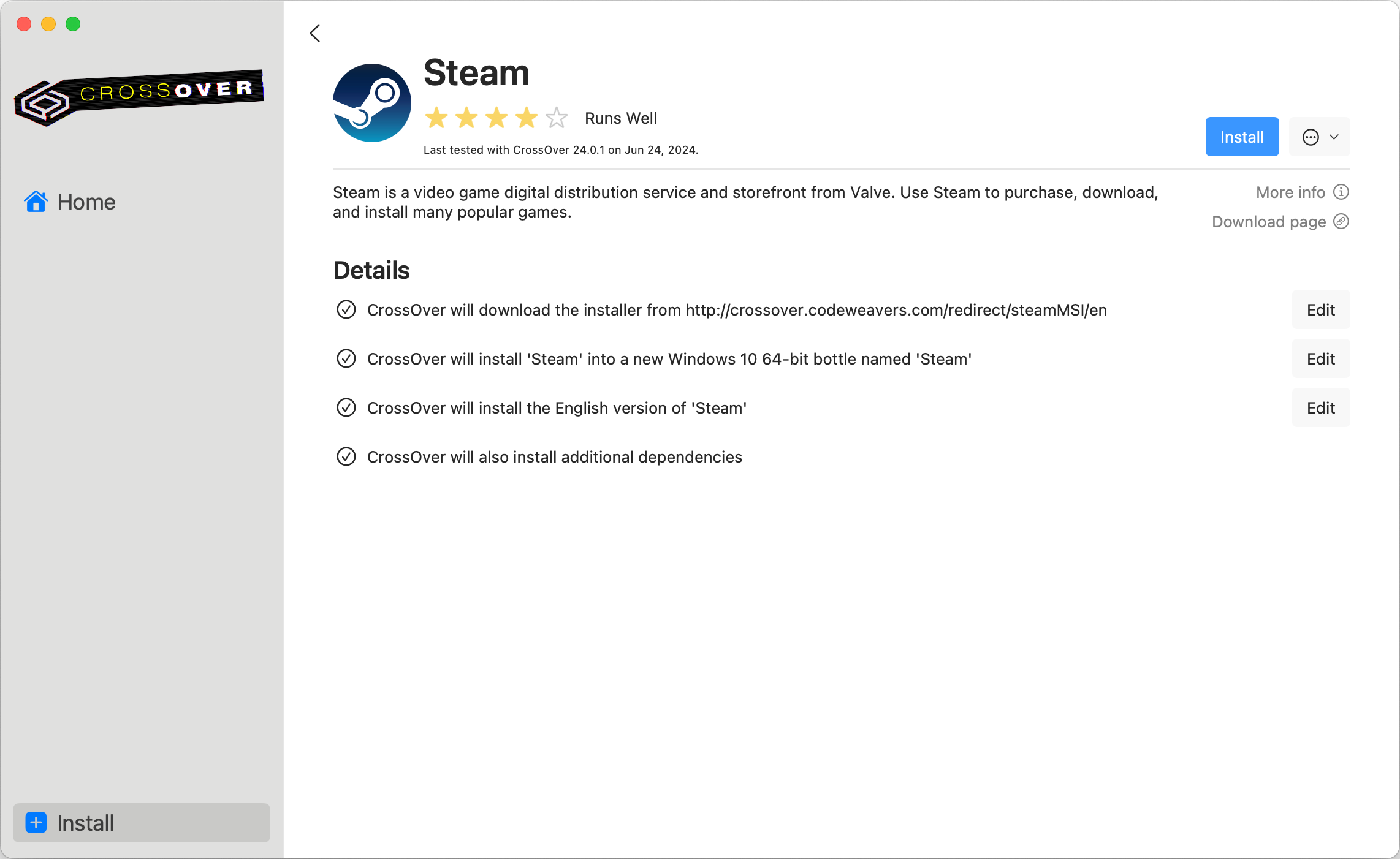
CrossOver is a commercial product from CodeWeavers built on Wine technology. It supplies compatibility for Windows applications on macOS without requiring a Windows installation or Windows license. You still need the game and any account or license it requires. [3]
Unlike a virtual machine, CrossOver does not boot a complete Windows operating system. It implements Windows interfaces that supported applications expect to find.
Games are installed into bottles: separate environments containing application files, settings, a Windows-style registry, and a virtual C: drive. Separate bottles let games use different dependencies or configurations. [4]
Graphics translation is another part of the process
Many Windows games use DirectX. CrossOver provides graphics translation options, including D3DMetal for DirectX 11 and 12, and DXMT for Direct3D 11. Its Auto setting can select a backend using CodeWeavers’ per-game database. [5]
These options are not interchangeable performance upgrades. A setting that helps one title may cause problems in another. Start with the recommended configuration for your game and change one option at a time.
Does CrossOver also use Rosetta?
It can. Windows compatibility and CPU translation are separate jobs. An Intel Windows executable still needs a way to execute its CPU instructions on an ARM-based Mac.
CodeWeavers has used Intel Wine with Rosetta and has also introduced an ARM64 Wine and FEX path in CrossOver Preview. Its July 2026 announcement describes different paths depending on the operating system. Do not assume every installed CrossOver version uses the same technology, or that a Preview feature is available in every stable release. [6]
Compatibility comes before performance
A game that reaches its main menu is not necessarily fully playable. Test actual gameplay, saving and loading, cutscenes, controller input, and the online modes you intend to use.
Search CodeWeavers’ compatibility database before purchasing. Look at recent Mac reports, the tested CrossOver version, and the configuration used—not just the overall rating. CodeWeavers also offers a trial, which lets you test your own setup. [3][7]
How to identify your Mac game’s version
Locate the game’s application in Finder, select it, and press Command-I. Look at Kind:
- Application (Apple silicon): built for Apple silicon.
- Application (Universal): includes support for both architectures.
- Application (Intel): built for Intel Macs. [1]
Inspect the game itself, not only its launcher. A launcher and the game it starts can use different architectures. Likewise, seeing a native CrossOver interface does not establish that the Windows game inside it runs without CPU translation.
Which version should you choose?
Start with a maintained Apple silicon Mac release when it offers the features you want. It avoids Intel CPU translation and provides a direct macOS installation path.
If the Mac release is Intel-only, verify that it works on your specific macOS version. If the game is Windows-only, investigate CrossOver support before committing to a purchase.
For performance comparisons, match the Mac chip, GPU configuration, memory, resolution, graphics preset, and upscaling settings. Check the game version and test date too. A benchmark marked “CrossOver” should identify its version and graphics backend; one marked “Mac” should distinguish native Apple silicon from Rosetta.
Use compatibility reports to answer whether the game works, and relevant benchmarks to answer how well it plays on hardware like yours. Those are separate questions, and both matter before buying.
Sources
Compatibility information checked October 24, 2026. This is an explanatory guide, not a report of hands-on performance testing.
- Apple: Using Intel-based apps on a Mac with Apple silicon
- Apple: 32-bit app compatibility with macOS
- CodeWeavers: CrossOver
- CodeWeavers: CrossOver Mac User Guide
- CodeWeavers: Advanced Settings in CrossOver Mac 26
- CodeWeavers: CrossOver Preview—The right to bear ARM64 on Mac
- CodeWeavers: Compatibility database
Comments
Sign in to join the conversation.
Log in to commentNo comments yet. Be the first to join the conversation.